Learn Codex on Mac, the right way.
A complete learning experience for OpenAI's coding agent on macOS. From your first download to advanced workflows. Every command, every setting, every pattern.
01Introduction
Codex is OpenAI's coding agent. The Mac app is its most polished surface. This guide takes you from never having heard of it to operating it fluently.

You may already know GPT-5 from ChatGPT. Codex is what happens when OpenAI takes that model and gives it real hands — file system access, a terminal, a browser, a Git repo, a sandbox. It writes code. It edits files. It runs commands. It commits changes. It tells you what it did, lets you review, and waits for your approval where it matters.
The guide is written for someone who has used ChatGPT or Cursor but never installed a real agent on their own machine. Every term that might be new is explained on first use. Skip ahead any time using the sidebar.
Finish this guide and you will know how to install Codex on a fresh Mac, configure it for your workflow, write a great AGENTS.md, use worktrees to run tasks in parallel, and debug whatever goes wrong. No magic — just the actual mechanics.
02What is Codex?
OpenAI's coding agent. Not an autocomplete plugin, not a chat window — an autonomous agent that reads, edits, and operates inside your codebase.
Most AI tools you have used in your editor are assistants — Copilot suggests, you accept or reject. Codex is an agent. You give it a task. It plans, opens files, makes changes across multiple files, runs commands in a terminal, executes tests, and comes back with a working diff. You review and approve.
What it can do
Generate code
Matches your project's conventions, not generic boilerplate.
Understand code
Reads and explains a codebase you've never seen before.
Review code
Finds bugs, logic errors, missing edge cases before they ship.
Debug
Traces failures, suggests targeted fixes.
Refactor
Restructures code across many files while preserving behaviour.
Automate
Migrations, test scaffolding, repo setup — anything repetitive.
Versus other AI tools
Copilot is autocomplete-grade. Cursor is an editor with AI features. ChatGPT is a chat interface. Codex is its own runtime — a standalone application that can read your repo, edit files, run tests, commit changes. Same model family as ChatGPT underneath. Very different shape.
03The four surfaces
Codex ships in four places. Same engine, different interfaces. Pick based on how you work.

| Surface | Best for |
|---|---|
| Desktop App | Most users. Daily driver. Polished UI, parallel threads, worktrees, in-app browser, image gen. macOS + Windows. Linux coming. |
| CLI | Terminal-first workflows, scripting, CI. Same engine, no GUI. Works over SSH. |
| IDE Extension | Inside VS Code, Cursor, Windsurf. Lives in the sidebar. Useful when you already have the IDE open. |
| Cloud | chatgpt.com/codex. No install. Connect a GitHub repo. Tag @codex in PRs to delegate. |
All four share the same auth. Sign into the Mac app once, the CLI and IDE extension recognise you. Skills you create in the Mac app are usable from the CLI. AGENTS.md files at the project root apply across all surfaces. The agent is one entity wherever you talk to it.
04Why start with the Mac app
All four surfaces work. The Mac app is the recommended starting point.
1. Most polished
Every Codex feature exists in the Mac app first. The CLI catches up over time. The IDE extension exposes a subset. Want the full feature set? Start in the app.
2. Parallelism is native
The Mac app handles multiple threads in worktrees natively. You can have Codex working on three things at once — each in its own Git branch, each in its own isolated workspace. The CLI can do this too, but the UI for managing it is far better in the app.
3. Computer Use lives here
Only the Mac app can drive your cursor and keyboard. Useful for tasks that touch native macOS apps, drag-and-drop workflows, or services with no API.
4. Visual diff review
When Codex proposes file changes, the Mac app shows them in a real diff viewer with accept / reject / edit controls. The CLI shows you a text diff and waits for y/n. Both work; one is dramatically easier on the eyes.
SSH'd into a remote server. Running Codex in CI. Scripting headless workflows. Anywhere you don't have a GUI available. The CLI is the right tool there.
05Glossary
Every term that appears later. Read once, refer back any time.
| Term | Meaning |
|---|---|
| Agent | A program that takes a goal, plans steps, uses tools, and acts without you holding its hand at every step. |
| Thread | One conversation with Codex on one task. Has a goal, history, isolated workspace. |
| Worktree | An isolated Git branch + working directory per thread. |
| AGENTS.md | A markdown file in your project root that tells Codex how to work in this codebase. |
| Sandbox mode | How much Codex can do on your filesystem and network. |
| Approval mode | When Codex asks permission. |
| MCP | Model Context Protocol. Open standard for plugging external tools into AI agents. |
| Skill | A reusable instruction set Codex can invoke across app / CLI / IDE. |
| Computer Use | Codex driving your cursor, keyboard, and screen autonomously. |
| Appshot | A one-shot screenshot of the frontmost macOS window. |
| Plan mode | Codex builds a step-by-step plan before acting. |
| Goal mode | Persistent objective Codex works toward until done. |
| Memories | Persistent facts about you and your workflow. |
| Chronicle | Long-form session history Codex reads to maintain context across days. |
| Subagent | A child agent Codex spawns for parallel sub-work. |
| Cloud thread | A thread that runs on OpenAI's infrastructure (not your machine). |
06Prerequisites
The shortest possible list. Most users already have everything they need.
macOS requirements
- macOS 13 (Ventura) or newer — both Apple Silicon and Intel supported
- ~500 MB free disk space — app itself, plus a sandboxed working area
- Internet connection — required for model inference and authentication
Account requirements
You need one of:
- ChatGPT account (Plus, Pro, Business, Edu, or Enterprise) — recommended. Unlocks all features including cloud threads, image generation, and the full model lineup.
- OpenAI API key — works, but you lose access to cloud-thread features and pay per token instead of per subscription.
Which to pick
| Situation | Pick this |
|---|---|
| You already use ChatGPT regularly | ChatGPT account — your existing plan covers Codex |
| You only use Codex programmatically (CI, scripts) | API key — pay per token, no subscription |
| You're on a team with shared billing | Business or Enterprise — admin controls + shared usage |
| You want the absolute fastest path | ChatGPT Plus ($20/mo) — covers everything |
07Download & install
Two minutes. No terminal commands.
Step 1 — Get the .dmg
Go to developers.openai.com/codex/app and click the macOS download button. Pick Apple Silicon if you have an M-series Mac (most Macs from 2020 onward), Intel if older.
Not sure which you have? Apple menu → About This Mac. If "Chip" says Apple M1 / M2 / M3 / M4 etc., you're on Apple Silicon.
Step 2 — Open the .dmg
Double-click the downloaded file. A Finder window appears with the Codex app icon and an Applications shortcut. Drag Codex into Applications.
Step 3 — Eject the disk image
Right-click the mounted "Codex" disk image on your desktop and choose Eject. Optional but tidy.
The Mac app includes a CLI binary at /Applications/Codex.app/Contents/MacOS/codex-cli. The app's preferences can symlink this to /usr/local/bin/codex so you can run the CLI from any terminal.
08First launch
Gatekeeper, permissions, and the sign-in screen.
Opening Codex the first time
Open Codex from Applications or Spotlight. On first launch, macOS Gatekeeper asks you to confirm. Click Open.
If macOS blocks the app entirely
If you see "Codex can't be opened because it is from an unidentified developer" with no Open button:
- Right-click the Codex app in Applications
- Choose Open from the context menu
- Click Open in the resulting confirmation dialog
You only have to do this once.
What you see next
The sign-in screen. The OpenAI logo, a "Continue with ChatGPT" button, and a smaller "Use API Key" link below.
09Sign in with ChatGPT
The recommended path. Five clicks, no token management.
The flow
- Click Continue with ChatGPT on the sign-in screen
- Your default browser opens an OpenAI authorization page
- Log in if you aren't already
- Click Authorize to grant the Codex app access
- The browser hands control back to the Codex app — you're signed in
What you get
- Full Codex feature set — every model, every tool, every UI surface
- Cloud threads — tasks that run on OpenAI's infrastructure
- Image generation inside threads
- No per-token billing — your existing ChatGPT subscription covers it
Copy the codex:// URL from the auth page, paste into Spotlight, press Enter. macOS routes it to the Codex app.
10Sign in with an API key
For scripts, CI, or when you prefer pay-per-token.
The flow
- Go to platform.openai.com/api-keys
- Click Create new secret key, name it "Codex Mac app"
- Copy the key (starts with
sk-) — you won't see it again - Back in Codex, click Use API Key
- Paste the key, click Continue
What you get vs lose
- Get: local thread execution, most app features, pay-per-token billing
- Lose: cloud threads, some ChatGPT-identity features, subscription-included credits
Codex stores your API key in macOS Keychain. The key is never written to a config file in plaintext.
11Opening your first project
Codex works on folders. Each folder is a project. Pick one.
Good first-project choices
- A small personal project — risk-free, lets you experiment
- A freshly-cloned open-source repo — try "tell me about this codebase"
- An empty folder — perfect for "build me X" tasks from scratch
Avoid your most critical production repo on day one. Get comfortable first.
What happens when you open a folder
- Codex indexes the project — file tree scan, README parsing, language detection
- It looks for an
AGENTS.mdfile at the root — if present, loads it into context - It detects whether the folder is a Git repository — if so, enables worktree-based isolation
- It surfaces the project in the sidebar and opens a fresh thread
First message — what to type
Tell me about this project. What does it do, how is it structured,
what would I improve first?
Find and fix bugs with minimal changes. Be conservative.
Show me a diff before applying anything.Build a classic Snake game in this repo. Use whatever stack
makes sense given what's already here.12Interface tour
Every element of the Codex Mac app, named and explained.
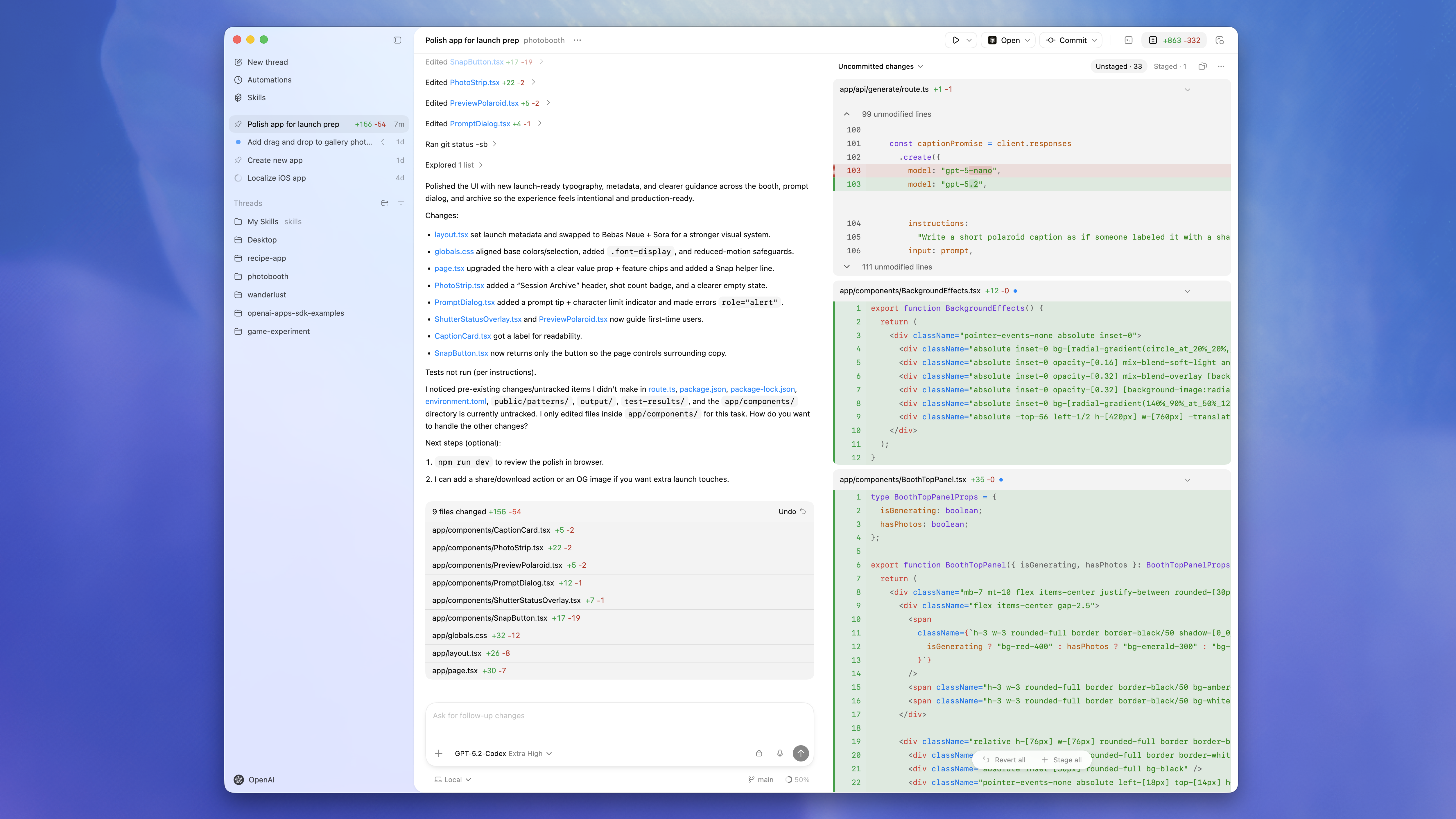
Three regions
The Mac app divides the screen into three vertical regions:
- Left sidebar — projects and threads navigation
- Center pane — the active thread (chat + tool outputs)
- Right pane — review pane (when files change), terminal, or browser
The right pane is collapsible. When you're just chatting, you can hide it and let the center pane go full width. When Codex is actively making changes, the right pane is where you spend most of your attention.
14Center pane — thread workspace
Where the conversation happens. Where you read Codex's thinking. Where you type next.
The message stream
Top to bottom in chronological order. Your messages and Codex's responses. Tool outputs (file reads, shell command output, diffs) appear inline as collapsible blocks.
The composer (input box)
At the bottom of the pane. Multi-line text area. Press Enter to send. Shift+Enter for newline. Type / to open the slash command menu. Type $ to open the skill picker.
Attaching files and images
Drag any file from Finder onto the composer. Drag an image to attach for vision analysis. Drag a folder to scope Codex to just that subdirectory.
Streaming responses
Codex's replies stream token-by-token. Read along, interrupt mid-stream with ⌘., or queue a follow-up while it's still typing.
15Right pane — review, terminal, browser
The pane that lights up when Codex acts on your filesystem.
Review mode
When Codex proposes file changes, the right pane shows them as a Git-style diff. For each file or hunk, you have three controls:
- Accept — apply this change
- Reject — discard this change
- Edit — modify the proposed change before accepting
Accept all at once with ⌘⇧A. Reject all with ⌘⇧R.
Terminal mode
When Codex needs to run a shell command, the right pane switches to a terminal view. You see the command, its output streaming live, the exit code. You can type into the same shell session.
Browser mode
If Codex needs to navigate a webpage, the right pane becomes an in-app browser. You see the page as Codex sees it. Codex's clicks and form fills happen in real time.
16Status bar
A single line of always-visible state at the bottom of the window.
| Field | Meaning |
|---|---|
| Active model | GPT-5, GPT-5 mini, or whichever variant the current thread is using. |
| Sandbox mode | read-only / workspace-write / danger-full-access. Colour-coded. |
| Approval policy | untrusted / on-request / never. |
| Context usage | Percentage of the model's context window currently in use. |
| Token count | Total tokens consumed in this thread so far. |
| Network status | Green = connected. Red = OpenAI unreachable. |
| Agent state | Idle / Planning / Editing / Running / Waiting for approval. |
Each field is clickable. Click the model name to switch models. Click the sandbox indicator to change modes.
17Your first thread
A thread is one conversation with Codex on one task.
Sending a task
Click the composer. Type your task. Press Enter. Codex starts working immediately.
Watching it work
Status updates as Codex moves: "Reading files…", "Planning…", "Editing src/foo.ts…", "Running tests…". The terminal lights up when shell commands run. The review pane lights up when files change.
Approving changes
By default, Codex doesn't write to disk without you saying yes. When it proposes a file change, you see the diff with three options: Accept, Reject, Edit.
Interrupting mid-task
⌘. interrupts the running agent. Send a steering message or stop entirely. The agent picks up your message when it finishes its current tool call.
18Worktrees — the safety net
Per-thread Git isolation. Mistakes are reversible, parallel threads don't collide.
A worktree is a Git feature that lets you check out multiple branches into different directories simultaneously. Codex uses this so each thread works on an isolated branch + working directory — changes don't touch your main checkout until you intentionally merge.
When worktrees are created
Automatically when you open a Git-tracked folder and start a new thread. Worktrees are enabled in Settings by default.
Where they live
Under ~/.codex/worktrees/<project-hash>/<thread-id>/ by default. Configurable in Settings → Worktrees.
Merging back
When a thread finishes successfully, three options:
- Merge into main — Codex creates a regular Git merge or rebase
- Open as PR — Codex pushes the branch and opens a pull request
- Keep separate — leave the worktree alone, integrate manually later
Discarding a worktree
Right-click the thread → Discard worktree. Branch and working directory removed. Main untouched.
Worktrees are why you can run three Codex threads in parallel without them stepping on each other. Each lives in its own little world until you bring it back into main.
19Slash commands
Type / in the composer to open the autocomplete menu.
| Command | Description |
|---|---|
/plan | Toggle plan mode. Codex builds a multi-step plan before acting. |
/goal | Set a persistent objective. Codex works toward it across multiple turns until done. |
/review | Enter code review mode. Compare uncommitted changes against a base branch. |
/mcp | Open MCP status. View connected MCP servers, their tools, and connection health. |
/status | Show the current thread ID, context usage, model, and rate limit info. |
/feedback | Open the feedback dialog. Optionally include logs. |
Skills via $
Skills (reusable instructions) are invoked using $. Example: $review-pr invokes a saved "review pull request" skill. Different sigil so skills don't collide with built-ins.
Enabling hidden commands
[features]
goals = true
Add to ~/.codex/config.toml to enable gated commands like /goal.
20Sandbox modes
How much of your machine Codex can reach.
Read-only
Codex can inspect files. It cannot edit or run commands without explicit approval. Use for code review, exploration, audit.
Workspace-write (default)
Codex can read and edit files in the workspace, run routine local commands. Asks before accessing the internet or stepping outside the workspace. Recommended for daily development.
Danger-full-access
All filesystem and network restrictions removed. Codex can read and write anywhere, access the internet, run any command.
Don't leave Codex in danger-full-access as default. Switch in for a specific task, switch out when done.
21Approval modes
When Codex pauses and asks you. Independent from sandbox mode.
Untrusted
Codex asks before every command outside its pre-approved set. Maximum oversight.
On-Request (default)
Codex works freely inside the sandbox. Only asks when it needs to step outside. Best balance.
Never
No prompts. Only safe with read-only or workspace-write sandbox.
Recommended combinations
| Situation | Sandbox | Approval |
|---|---|---|
| Daily development | workspace-write | on-request |
| Code review only | read-only | never |
| Unattended automation | workspace-write | never |
| Learning Codex | workspace-write | untrusted |
| Throwaway VM task | danger-full-access | on-request |
22Settings panel
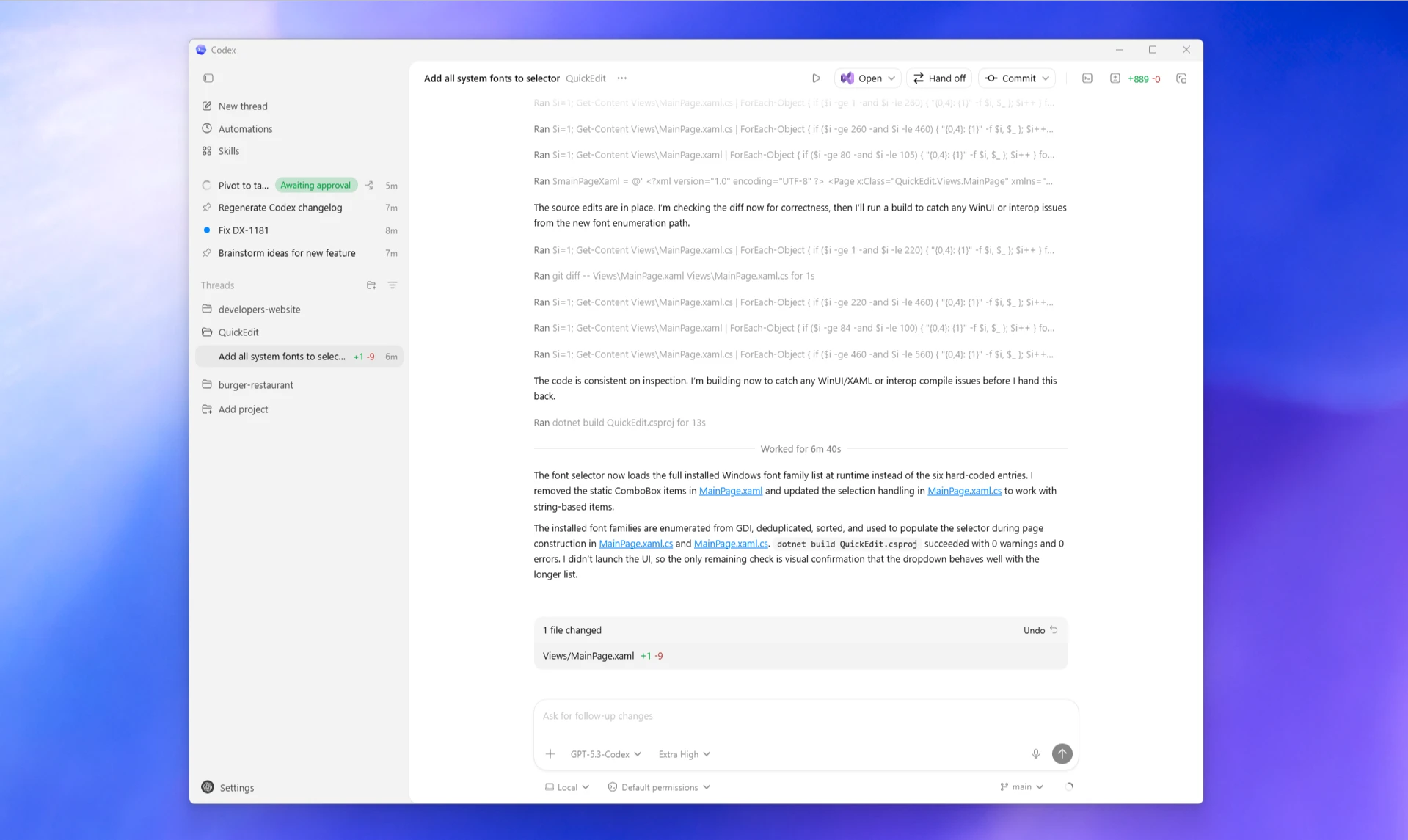
Every section of Codex → Settings, what it does, when to change it.
| Section | What's inside |
|---|---|
| Account | Sign in / sign out. Switch between ChatGPT and API key auth. Shows current plan tier. |
| Model | Pick the default model for new threads. Override per-thread from the thread header. |
| Permissions | Sandbox mode and approval policy defaults. |
| Workspace | Default project folder, recent projects, ignore patterns. |
| Worktrees | Whether new threads auto-create worktrees, where worktrees live. |
| Integrations | GitHub, Slack, Linear, Chrome extension. |
| MCP | Manage Model Context Protocol servers. |
| Skills | Reusable instruction sets — create, edit, share. |
| Automations | Scheduled or recurring tasks Codex runs in the background. |
| Notifications | What triggers a macOS notification. |
| Appearance | Light / dark / system, font size, accent colour. |
| Updates | Auto-update toggle, release channel. |
| Advanced | Telemetry, log paths, debug flags, config.toml location. |
23Computer Use
Codex driving your cursor, keyboard, and screen on macOS.
What it does
Computer Use lets Codex take screenshots, move the cursor, click, type, and switch apps. Tasks that touch native macOS apps, drag-and-drop workflows, or services with no API.
Permissions required
- Accessibility — System Settings → Privacy & Security → Accessibility → add Codex
- Screen Recording — System Settings → Privacy & Security → Screen Recording → add Codex
Restart Codex after granting Screen Recording for the permission to take effect.
When to use vs not
Good fit: native macOS apps with no API, drag-drop between Finder and an app, System Settings tweaks.
Bad fit: editing your codebase (use editor toolset), shell commands (use terminal), web browsing (use in-app browser — DOM-aware, much faster).
24Appshots
A one-shot screenshot of the frontmost window, sent into the thread.
How to take one
Default shortcut: ⌘⇧A. Snap any window. Codex captures it and attaches to your most recent thread.
When to use
- Looking at an error dialog — ask Codex to explain
- Viewing a design in Figma — ask for improvements
- Chart-heavy spreadsheet — ask for analysis
- Diagram on screen — translate to code
After attaching
Codex doesn't auto-analyse. Tell it what to do:
What does this error message mean?
How would you fix this layout?
Convert this diagram into a TypeScript interface.25In-app browser
A built-in Chromium pane Codex can navigate. DOM-aware.
How to open
- Ask Codex to "open this URL" — right pane switches to browser mode
- Click the browser tab at the top of the right pane
- Press
⌘Bto toggle
What it's good for
- Reading docs and references mid-task
- Filling out web forms during a build
- Scraping structured data from public pages
- Anything where you don't need to be logged in
What it's NOT for
Pages requiring your authenticated session — Gmail, Notion, GitHub. The in-app browser doesn't share cookies with your real Chrome. For those, use the Chrome extension.
26Chrome extension
Connect Codex to your real Chrome — the one with all your logged-in sessions.
Installing
- Open Codex Settings → Integrations → Chrome Extension
- Click Install — Chrome opens the Web Store page
- Click Add to Chrome, confirm permissions
- Pin the extension icon, sign in with the same OpenAI account
- Settings → Integrations shows Connected
What it unlocks
- Triage your Gmail inbox
- Create or update Notion pages
- Review and merge GitHub PRs
- File Linear issues
- Anything that requires SSO or 2FA you've already completed in Chrome
Public sites = in-app browser. Logged-in sites = Chrome extension.
27Image generation
Codex can generate and edit images directly inside a thread.
How to trigger
Generate a hero banner image for this landing page,
1600x800, abstract, blue palette.

Create a 1024x1024 app icon for a coding tool —
gradient background, terminal prompt glyph centred.
Editing images
Attach an image, tell Codex what to change:
Remove the background from this image.
Make this colour palette warmer.
Add a small badge in the top-right that says "BETA".
When useful for developers
- Mockups during prototyping — visual draft fast
- Hero / OG images for landing pages built in the current thread
- Logo and favicon experimentation
- Diagram-style visuals for documentation
- Asset generation for games
28MCP servers
An open standard for plugging external tools into AI agents.
An MCP server is a small program that exposes tools to any MCP-aware agent. Codex speaks MCP, so any MCP server you connect becomes part of Codex's toolkit.
Popular MCP servers
GitHub
Issues, PRs, repos, releases via the GitHub API.
Postgres
Query and modify your Postgres database.
Notion
Read and write Notion pages.
Slack
Read channels, post messages.
Stripe
Query customers, charges, subscriptions.
Linear
Read and create Linear issues.
Adding an MCP server
Settings → MCP → Add Server. Pick from registry or paste custom command. Fill env vars. Save.
# Example: GitHub MCP
Name: github
Command: npx
Args:    @modelcontextprotocol/server-github
Env:     GITHUB_PERSONAL_ACCESS_TOKEN=<your-token>
Verify with /mcp in any thread.
29Skills — reusable instructions
Save instruction sets, invoke with $name. Skills compound your productivity.
When to make a skill
Any time you find yourself typing the same instruction twice. Common patterns:
$review-pr— review the current PR for security, performance, style$add-tests— write unit tests for the last file edited$refactor— refactor following project conventions$changelog— draft changelog from recent commits$onboard— onboarding summary for a new dev
Anatomy of a skill file
---
name: review-pr
description: Review the current PR with focus on security,
  performance, and edge cases. Trigger: "review", "PR review".
tags: [review, quality]
---

## When triggered
When the user asks for a code review on a PR or
uncommitted changes.

## Steps
1. Run git diff main to see all changes
2. For each file, list potential issues:
   - Security: input validation, auth, secrets
   - Performance: hot loops, N+1, missing caching
   - Edge cases: nullish, error paths, race conditions
3. Group by severity (blocker / major / minor)
4. Return a markdown report
Skills live in ~/.codex/skills/. Cross-surface — available in CLI and IDE extension too.
30Multitasking — parallel threads
The killer feature of the Mac app. Three threads = three tasks in parallel.
A real workflow
- Thread 1: "Refactor the auth module to use JWTs instead of sessions."
- Thread 2: "Write integration tests for the payment flow."
- Thread 3: "Update the README to match the new API."
Each runs independently in its own worktree. Switch between them by clicking in the sidebar. When each finishes, you merge its worktree into main.
Throughput math
Three 20-minute tasks sequentially = 60 minutes. In parallel, model time stays the same, but elapsed wall time drops to ~25-30 minutes depending on how fast you review.
Where the bottleneck moves
You. Once Codex runs three threads in parallel, the limit is how fast you review and approve. Not how fast the model thinks.
31Automations & scheduled tasks
Recurring work Codex does without you. Set once, forget.
Three trigger types
- Time-based — every morning at 8am, every Friday afternoon, every hour
- Event-based — PR opened, file changed, commit lands on main
- Manual — saved task you fire on demand
Real examples
- Every Monday 9am: run all tests, summarise failures, DM to Slack
- Every PR on main repo: review and post a structured comment
- Every commit to main: regenerate docs, push if changed
- Every hour: check for dep updates, open a PR if available
- Every Friday 5pm: draft a weekly review from this week's threads
Your first automation should be one thing you do every Monday. Add more later as you see which are reliable.
32AGENTS.md — the project brief
A markdown file that tells Codex how to work in your project. Loaded every time, applied automatically.
Why it matters
Without AGENTS.md, Codex starts every thread with no context about your project's conventions. With it, Codex starts already knowing your stack, your commands, your rules. The cost of writing a good one pays back within a day.
Placement & precedence
| Scope | Path | When |
|---|---|---|
| Global | ~/.codex/AGENTS.md | Applies to every project unless overridden. |
| Project root | ./AGENTS.md at Git root | Applies to this whole repo. |
| Subdirectory | subdir/AGENTS.md | Applies only inside that subdirectory. |
| Override | AGENTS.override.md | Replaces the AGENTS.md at the same level entirely. |
Worked example
# Project: Acme Backend

## Stack
- Python 3.12, FastAPI, SQLAlchemy 2 (async)
- Postgres 16 (prod), SQLite (tests)

## Commands
- Run tests: make test
- Run lint: make lint
- Start dev server: make dev

## Conventions
- Async everywhere — no sync in route handlers
- Prefer pure functions; raise early
- All API responses go through Pydantic models

## Never
- Never run migrations against prod from this machine
- Never commit secrets — check .env.example firstType "Summarize the current instructions you're operating under." Codex echoes back the gist of every AGENTS.md it loaded.
33Memories & Chronicle
How Codex remembers you across threads, sessions, days.
Memories
Small facts about you and your workflow that persist across threads. Examples:
- "User prefers TypeScript strict mode"
- "User's deploy target is Vercel"
- "User asked never to suggest jQuery"
- "User uses Bun, not Node"
Created automatically when Codex notices a recurring pattern, or explicitly: "Remember that we use Bun in this project."
Inspecting
Settings → Memories shows the full list. Each has a delete button. Codex won't recreate a deleted memory unless you re-introduce the pattern.
Chronicle
Long-form session history. Different from memories: memories are facts, Chronicle is the timeline. Codex reads it to maintain context across days.
Where it all lives
~/.codex/memories.db | SQLite memory store |
~/.codex/chronicle.db | SQLite session timeline |
~/.codex/skills/ | Your skill markdown files |
~/.codex/config.toml | Settings |
~/.codex/log/ | All logs |
34Troubleshooting
The fixes for the issues you'll actually hit.
| Symptom | Fix |
|---|---|
| App won't launch on first install | Right-click in Applications → Open. Gatekeeper bypasses unidentified-developer warning once. |
| Browser auth doesn't redirect back | Copy the codex:// URL, paste into Spotlight, press Enter. |
| "Permission denied" when editing files | Sandbox too restrictive. Switch to workspace-write. |
| Codex won't run shell commands | Approval set to Untrusted. Switch to On-Request. |
| Computer Use fails silently | Accessibility or Screen Recording permission missing. |
| MCP server shows "Disconnected" | Check env vars in Settings → MCP. Re-save. |
| AGENTS.md not loaded | Check file at Git root, named exactly AGENTS.md. Re-open project. |
| Worktree conflicts on merge | Resolve in your Git client. Standard Git workflow applies. |
| Token limit hit mid-task | Switch to GPT-5 extended context, or split into smaller threads. |
| App feels slow / laggy | Settings → Advanced → Logs. Often a stuck background thread — /stop. |
Where logs live
~/.codex/log/codex-tui.log    # app session logs
~/.codex/log/mcp-*.log         # per-MCP-server logs
~/.codex/log/auth.log # sign-in flow trace35Workflow patterns
The handful of workflows that separate occasional users from operators.
1. Write AGENTS.md first
Before your first real task in a new project, spend 10 minutes writing a tight AGENTS.md. Every subsequent thread benefits.
2. One thread per task
Don't pile multiple unrelated tasks into one thread. Open a new thread per task. Each gets its own worktree, context, clean diff.
3. Plan mode for anything non-trivial
For tasks beyond "fix this one bug," start with /plan. Codex builds a step-by-step approach. You review the plan before any code is touched.
4. Skills for repeat work
If you find yourself typing the same instruction twice — "review this PR, focus on security and performance" — turn it into a skill. $review from then on.
5. Parallel threads for big features
Big feature? Split into 3-5 independent tasks. Open a thread per task. Run in parallel. Merge worktrees at the end.
6. Use the cloud for review
For PR reviews, tag @codex in a GitHub PR comment. Codex reviews in the cloud, posts findings as comments. No local thread needed.
7. Automate the boring
Anything you do every Monday morning, every release, every PR — turn it into an automation. Codex runs it in the background. You get a notification.
None of these is dramatic alone. Together they make Codex feel like a team. AGENTS.md sets the rules. Skills capture recurring moves. Parallelism scales throughput. Automations remove chores.
36Cheat sheet
The printable reference. Keep it next to your keyboard.
Setup
# Install
Download .dmg from developers.openai.com/codex/app
Drag into Applications, right-click → Open on first launch

# Sign in
Continue with ChatGPT  (recommended)
Or paste an API key

# First project
Open Folder → pick a directory
Codex auto-detects AGENTS.md and indexes the project
Top slash commands
/plan         # multi-step planning mode
/goal         # persistent goal across turns
/review       # code review mode
/mcp          # view connected MCP servers
/status       # thread ID, context, limits
/feedback     # submit feedback + logs
$skill-name   # invoke a saved skill
Keyboard shortcuts
| Shortcut | Action |
|---|---|
⌘K | Command palette / quick search |
⌘N | New thread |
⌘. | Interrupt the running agent |
⌘B | Toggle the right pane |
⌘⇧A | Take an Appshot / Accept all changes |
⌘⇧R | Reject all proposed changes |
⌘, | Open Settings |
⌘Q | Quit Codex |
Where things live
~/.codex/ | data root |
~/.codex/config.toml | main config |
~/.codex/AGENTS.md | global agent brief |
~/.codex/skills/ | your skills |
~/.codex/log/ | session + MCP + auth logs |
./AGENTS.md | project-scoped brief (per repo) |
Open Codex. Pick a folder. Ship something small. Then ship something bigger. The agent learns alongside you.